

Getting Started
On this page you will find instructions on how to get started with each program and easily familiarize yourself with their features.
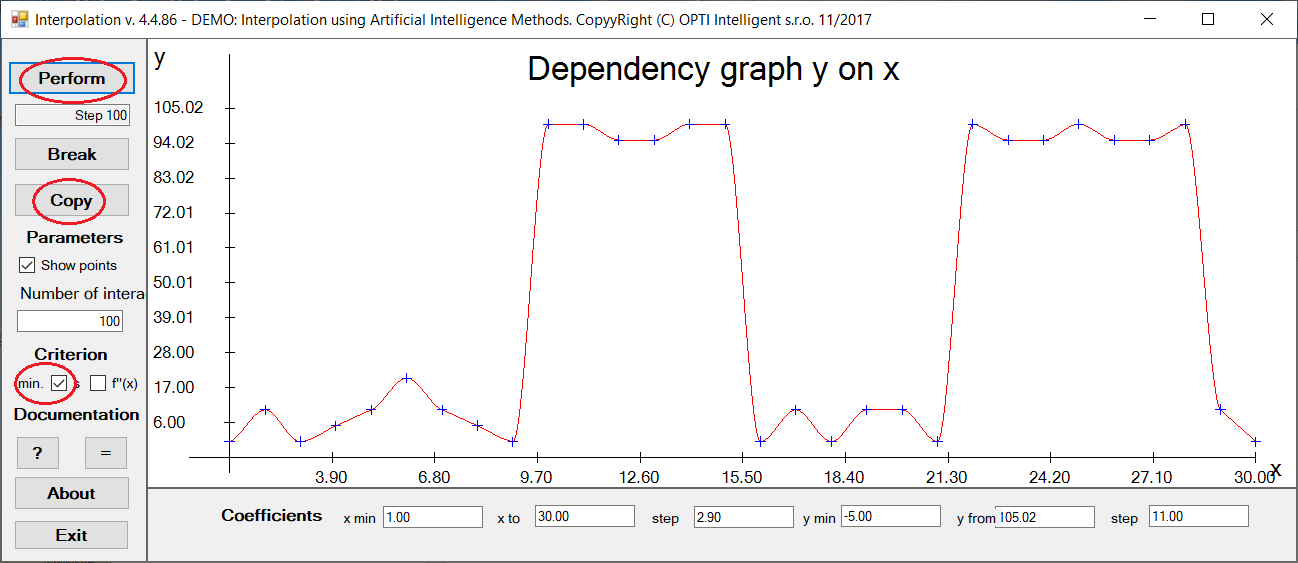
Interpolation
Press the Process button, select the Data directory, select the file Example1.txt
performs optimization
Press Copy
Save to Word, Paint, etc. using ctrl/v
Similarly, try more complex interpolation Process, Example5.txt
You can influence the interpolation method using Criterion
- min - minimum curve length
- f''(x) - minimum curve change
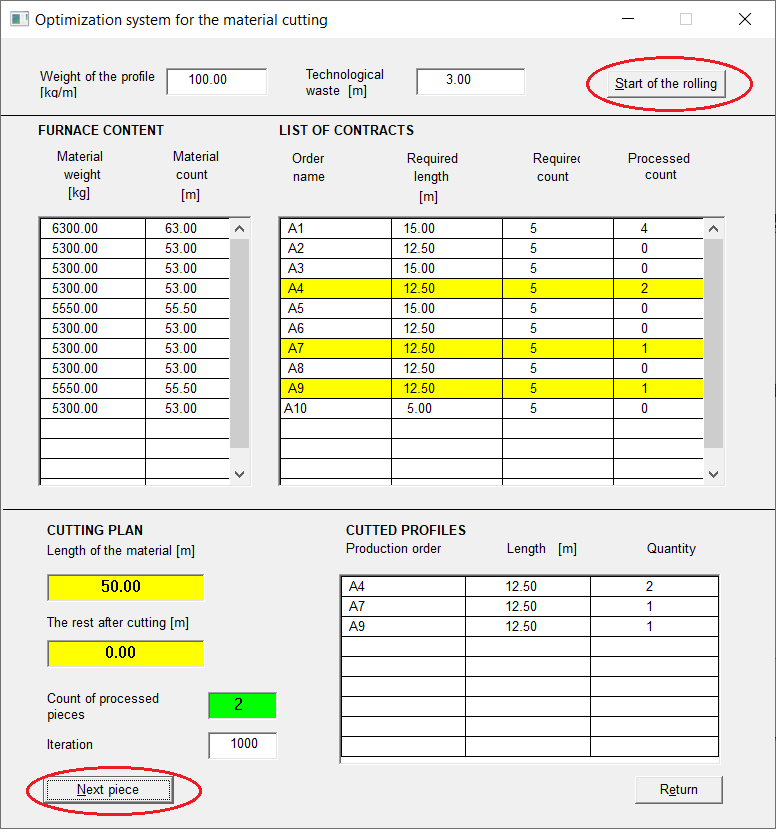
Rolling
Press File Open Example.txt, Open, the data will be loaded
Press Processing, start of campaign, the contents of the furnace and the order will be displayed
Press Next roll, it will perform optimization and the order plan will display the yellow selected orders that are to be cut from this profile, the length of the roll and the rest will be displayed at the bottom
The cut orders will be displayed at the bottom right
Always continue Next roll
To end the processing, press File Exit
To end the program, press the Return button
View the file priklad.txt and edit or create your own file and use the Parameters menu button to describe the input values.
To display help, press the buttons at the top right
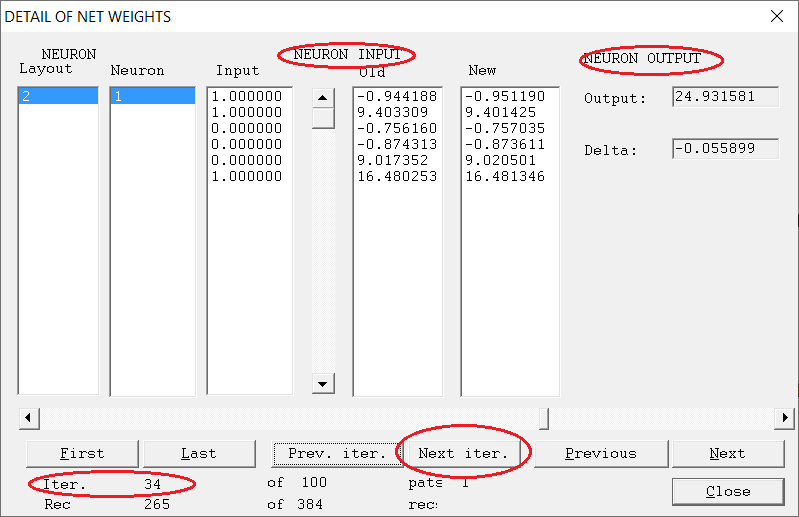
TNeuron
Press Description Parameters Search select pes.top OK
In Description you will read brief information about the task
View the network parameters, you can try to change them later.
Below you can see the network type
Click the End button to finish reading the task definition
Press Data Write, view the data from which the network will learn, use the Next and Previous buttons
If you want to change any data, confirm OK
End viewing the data with the End button
Press Processing, Network learning, the network will learn from the data and report
Press Results
- Adaptation - you will see how the neural network learned, use the Next and Previous, Last and First buttons, end with the End button
- Calculation - displays the calculation details, press the Neuron Layer and you will see the neuron details, buttons similar to above, end with the End button
- Query - enter the data by clicking on the field below Value, confirm OK, after entering the data, press the Calculation button to perform the calculation and display the result, press Neuron layer and you will see the neuron detail, buttons similar to above, end End
